


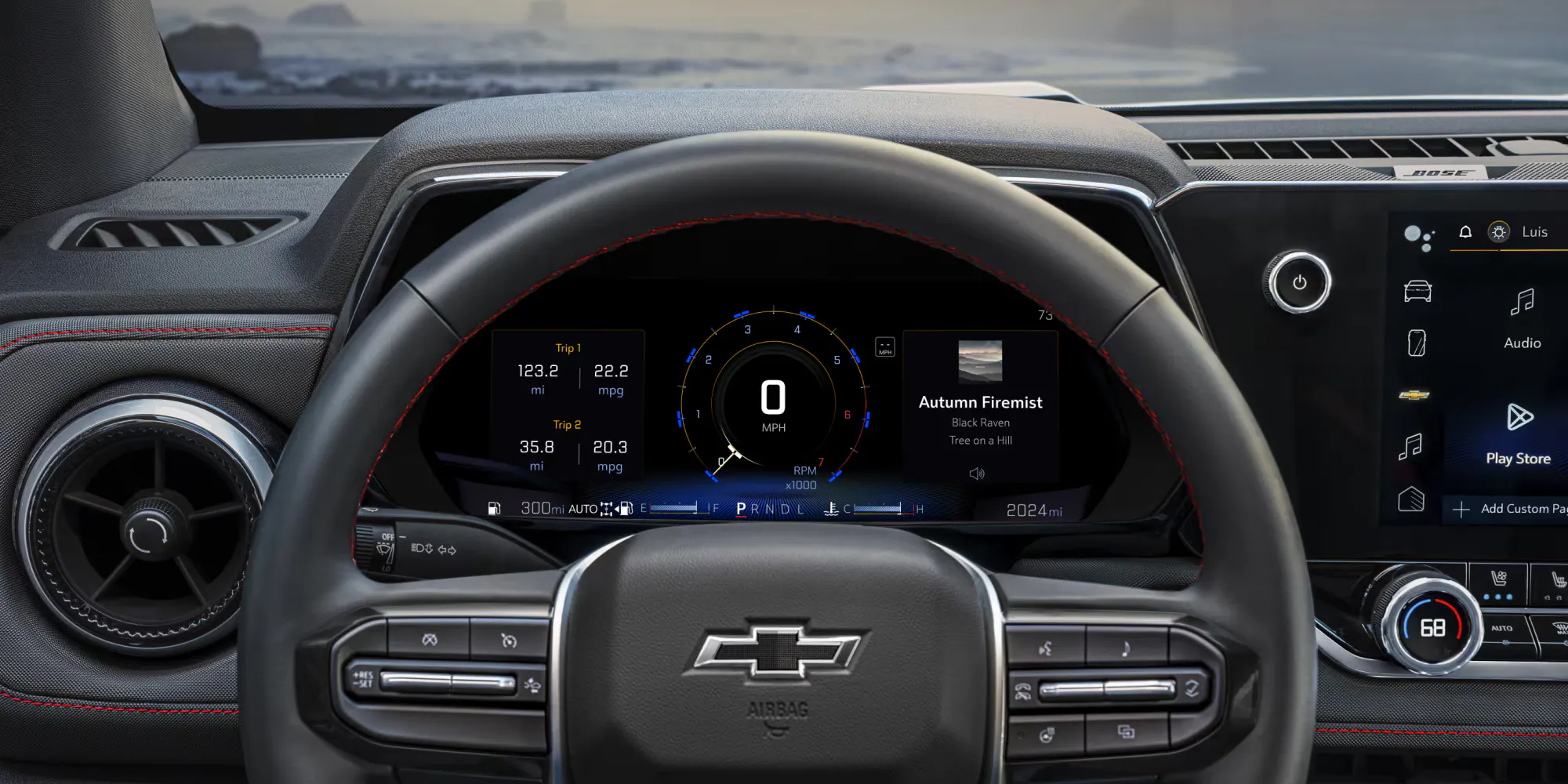
How to Pair Apple CarPlay or Android Auto in a Chevy Colorado
This content was aggregated from local dealer data and insights provided by the USA Today Network Automotive Insights team using Google Gemini and the Vehicles For Sale Near Des Moines Register Edition marketplace writing team.
Connecting Your Smartphone: Apple CarPlay and Android Auto in Your 2026 Chevrolet Colorado
At Shottenkirk Chevrolet Waukee near Des Moines, Iowa, we know that staying connected on the go is more important than ever. The 2026 Chevrolet Colorado offers seamless smartphone integration through Apple CarPlay and Android Auto, transforming your truck's infotainment system into an extension of your phone. This guide will walk you through the simple steps to connect your device and make the most of these convenient features in your new Chevrolet Colorado.
Understanding Apple CarPlay and Android Auto in Your Chevrolet Colorado
Apple CarPlay and Android Auto allow you to safely access many of your phone's essential features directly through the 11.3" Diagonal Advanced Color LCD Display in your Chevrolet Colorado. Once connected, you can use compatible navigation apps, make and receive calls, send and read messages, and enjoy your favorite music and podcasts without ever needing to pick up your phone. The 2026 Chevrolet Colorado Z71, like the model available at Shottenkirk Chevrolet Waukee, features wireless mirroring for both Apple CarPlay and Android Auto, offering even greater convenience.
Preparing Your Phone and Chevrolet Colorado for Connection
Before you begin the pairing process, ensure both your smartphone and your 2026 Chevrolet Colorado are ready. This preparation helps ensure a smooth and successful connection.
- Check Phone Compatibility: Ensure your iPhone runs iOS 7.1 or newer for Apple CarPlay, or your Android phone runs Android 5.0 (Lollipop) or newer for Android Auto.
- Update Your Phone: Make sure your phone's operating system is updated to the latest version.
- Enable Bluetooth and Wi-Fi: For wireless Apple CarPlay or Android Auto, ensure Bluetooth is turned on and discoverable on your phone. Your Chevrolet Colorado's Wi-Fi hotspot-capable mobile internet access can also facilitate the connection.
- USB Cable (Optional for Wired Connection): If you prefer a wired connection or if wireless pairing isn't working, have a high-quality USB cable ready. Plug it into one of the USB ports in your Chevy Colorado.
- Vehicle in Park: For safety, ensure your Chevy Colorado is in Park before starting the setup process.
Step-by-Step Guide to Pairing Your Device
Connecting your smartphone to your new Chevy Colorado is straightforward. Follow these steps for either wireless or wired integration:
For Wireless Apple CarPlay or Android Auto
- Activate Bluetooth: On your smartphone, go to your settings and ensure Bluetooth is enabled and discoverable.
- Access Infotainment Screen: On your Chevrolet Colorado's infotainment display, touch the "Phone" icon.
- Add a Phone: Select "Add Phone" or "Connect Phone" from the menu. The system will begin searching for nearby Bluetooth devices.
- Select Your Phone: On your phone, look for "My Chevrolet" or "Chevrolet Colorado" in the list of available Bluetooth devices and select it.
- Confirm Pairing: Both your phone and the Chevrolet Colorado's screen will display a PIN or confirmation code. Verify that the codes match and accept the pairing request on both devices.
- Grant Permissions: Your phone may ask for various permissions, such as access to contacts, messages, and calendar. Grant these permissions to enable full functionality.
- Confirm Integration: Once paired, the infotainment screen will prompt you to use Apple CarPlay or Android Auto. Select "Always Enable" or "Use Once" as preferred. The Apple CarPlay or Android Auto interface will then appear on your display.
For Wired Apple CarPlay or Android Auto
- Connect USB Cable: Plug one end of a compatible USB cable into your smartphone and the other end into a USB data port in your Chevrolet Colorado.
- Follow On-Screen Prompts: The infotainment system should automatically detect your phone and prompt you to launch Apple CarPlay or Android Auto.
- Grant Permissions: Your phone may display prompts asking for permissions. Accept these to proceed.
- Confirm Connection: The Apple CarPlay or Android Auto interface will then appear on your Chevy Colorado's display.
Using Apple CarPlay and Android Auto in Your Chevrolet Colorado
Once connected, navigating Apple CarPlay or Android Auto in your Chevrolet Colorado is intuitive:
- Navigation: Use apps like Apple Maps, Google Maps, or Waze for turn-by-turn directions.
- Calls and Messages: Make calls, check voicemails, and send or receive messages using voice commands or the on-screen interface.
- Music and Podcasts: Access your favorite streaming services or stored media.
- Voice Control: Utilize Siri for Apple CarPlay or Google Assistant for Android Auto by pressing the voice command button on your steering wheel.
- App Access: Swipe through the screens to find and open other compatible apps installed on your phone.
Your phone should automatically reconnect to Apple CarPlay or Android Auto each time you start your 2026 Chevrolet Colorado, provided Bluetooth and Wi-Fi are enabled (for wireless) or the USB cable is connected (for wired).
Troubleshooting Common Connection Problems
If you encounter issues connecting your smartphone to your Chevrolet Colorado, try these troubleshooting steps:
- Check Phone Compatibility: Confirm your phone meets the minimum operating system requirements for Apple CarPlay or Android Auto.
- Verify Bluetooth and Wi-Fi: Ensure Bluetooth is on and discoverable on your phone, and Wi-Fi is enabled for wireless connections.
- Inspect USB Cable: If using a wired connection, ensure the USB cable is securely connected at both ends and is not damaged. Try a different, certified USB cable.
- Restart Phone and Vehicle: Sometimes, simply restarting your smartphone and turning your Chevrolet Colorado off and on again can resolve connection issues.
- Clear Device History: On your phone, forget the Chevrolet Bluetooth connection. On your Chevrolet Colorado's infotainment system, delete your phone from the list of paired devices. Then, restart the pairing process from the beginning.
- Check Vehicle Settings: Ensure Apple CarPlay or Android Auto is enabled in your Chevrolet Colorado's infotainment settings.
Why Buy From Shottenkirk Chevrolet Waukee
When you're looking for a new Chevrolet Colorado for sale near Waukee, IA, Shottenkirk Chevrolet Waukee offers a wide selection of vehicles, including the capable 2026 Chevrolet Colorado Z71. Our team is dedicated to providing a straightforward and helpful buying experience. We are here to assist you with your vehicle needs and ensure you drive away satisfied in a quality Chevrolet Colorado near Des Moines.
Written for Shottenkirk Chevrolet Waukee
By the USA TODAY Network Automotive Insights Team, in collaboration with VehiclesForSaleNearDesMoines.com and the Vehicles For Sale Near Des Moines Register Edition.
Disclaimer: This article's content is intended for informational purposes only. Vehicle specifications and features are based on data provided by J.D. Power and local dealerships and may vary by individual vehicle, VIN, trim, configuration, packages, and optional equipment. Vehicle images may not depict the exact model, trim, features, packages, accessories, or specifications described. Vehicle pricing, availability, features, and specifications are subject to change without notice. Please reference the dealership's vehicle listing and window sticker or consult the dealership directly for complete and accurate details.