
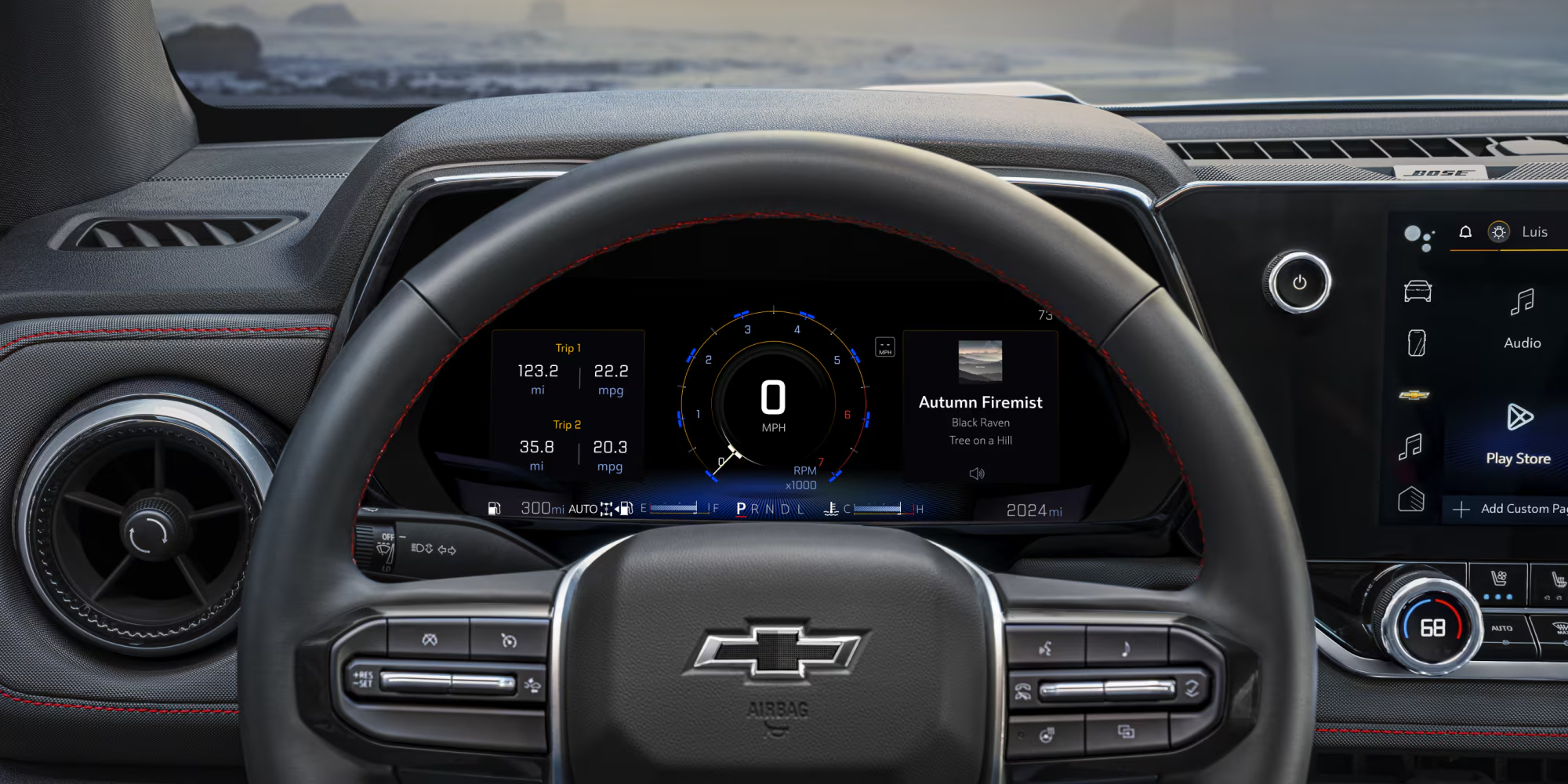



Staying connected and entertained on the road is easier than ever with modern vehicle technology. For owners of a Chevrolet Colorado, integrating your smartphone with the truck's infotainment system through Apple CarPlay or Android Auto brings a world of convenience directly to your dashboard. At Shottenkirk Chevrolet Waukee, near Des Moines, IA, we're here to help you understand how to pair your device and make the most of these features in your new Chevy Colorado.
Apple CarPlay and Android Auto transform your Chevrolet Colorado's display into an extension of your smartphone. This allows you to safely access your phone's compatible apps, including navigation, messaging, calls, music, and podcasts, all through the truck's touchscreen or voice commands. Whether you're navigating the streets of Waukee or embarking on a longer journey, these systems keep your essential apps within easy reach.
Before you begin the pairing process, a few simple preparations will ensure a smooth connection. For the 2026 Chevrolet Colorado, especially trims like the Chevy Colorado Z71, wireless Apple CarPlay and Android Auto are key features, offering a seamless experience without the need for cables.
Ensure your smartphone is compatible with Apple CarPlay (iPhone 5 or newer) or Android Auto (Android 6.0 or newer).
Confirm that your phone's operating system and apps are updated to their latest versions.
For wireless connections, make sure Bluetooth and Wi-Fi are enabled on your smartphone.
If you are attempting a wired connection, use a high-quality USB cable directly connected to the Chevrolet Colorado's data port, not a charging-only port.
Make sure your Chevrolet Colorado's infotainment system software is up-to-date.
The 2026 Chevrolet Colorado, including the capable Chevy Colorado Z71, features Apple CarPlay/Android Auto smart device wireless mirroring and Wireless Phone Projection, making connection straightforward. Follow these steps to connect your device:
Ensure your truck is on and in Park.
On your smartphone, turn on Bluetooth and Wi-Fi. Make sure your phone is discoverable.
On your Chevrolet Colorado's infotainment screen, navigate to the "Phone" icon or "Projections" option.
Select "Add Phone" or "Connect Device" on the infotainment screen. The system will begin searching for available devices.
On your smartphone, look for your Chevrolet Colorado's Bluetooth name (often "MyLink" or "Chevrolet Colorado") in the list of available devices and select it.
A pairing code will appear on both your phone and the Chevrolet Colorado's screen. Confirm that the codes match, then select "Pair" or "Yes" on both devices.
Your phone may prompt you to grant permissions for contacts, messages, and other app access. These permissions are necessary for Apple CarPlay or Android Auto to function fully. Review and accept them to proceed.
Once successfully paired, the Apple CarPlay or Android Auto icon should appear on your Chevrolet Colorado's infotainment screen, indicating that your phone is connected and ready to use.
For future drives, your phone should automatically connect to your Chevrolet Colorado when you start the vehicle, provided Bluetooth and Wi-Fi remain enabled on your device.
Once connected, you can easily access your favorite smartphone features. The interface will display a simplified version of your phone's apps, designed for in-vehicle use:
Use Apple Maps, Google Maps, or Waze for turn-by-turn directions.
Make and receive calls, and send or listen to messages using voice commands or the touchscreen.
Stream audio from your preferred music apps like Spotify, Apple Music, or Pandora.
Utilize Siri for Apple CarPlay or Google Assistant for Android Auto by pressing the voice command button on your steering wheel or saying "Hey Siri" or "Hey Google" (if enabled).
The system is designed to minimize distractions, allowing you to focus on the road while staying connected.
If you encounter difficulties connecting your phone to Apple CarPlay or Android Auto in your Chevrolet Colorado, try these troubleshooting steps:
Ensure your smartphone is compatible with Apple CarPlay or Android Auto.
Confirm that Bluetooth and Wi-Fi are enabled on your phone.
If attempting a wired connection, try a different, certified USB cable.
Turn off and restart both your smartphone and your Chevrolet Colorado's infotainment system.
On your phone, go to Bluetooth settings and "forget" or "unpair" your Chevrolet Colorado. On the truck's infotainment system, delete your phone from the paired devices list. Then, restart the pairing process from the beginning.
Ensure both your phone's operating system and the Chevrolet Colorado's infotainment software are up-to-date.
Here are answers to common questions about connecting your smartphone to a Chevrolet Colorado:
First, ensure Bluetooth and Wi-Fi are on your iPhone. On your Chevrolet Colorado's infotainment screen, go to "Phone" and "Add Phone." Select your truck's Bluetooth name on your iPhone, confirm the pairing code, and accept any permissions. The system should then activate Apple CarPlay wirelessly.
Enable Bluetooth and Wi-Fi on your Android phone. On your Chevrolet Colorado's infotainment screen, select "Phone" and then "Add Phone." Choose your truck's Bluetooth name on your Android device, confirm the pairing code, and grant necessary permissions. Android Auto will then launch wirelessly.
Verify that your phone is compatible and has updated software. Ensure Bluetooth and Wi-Fi are active on your phone. Try restarting both your phone and the Chevrolet Colorado's infotainment system. If issues persist, delete the existing pairing from both devices and attempt to re-pair from scratch.
When you're looking for a new Chevy Colorado, including the rugged Chevy Colorado Z71, Shottenkirk Chevrolet Waukee is your trusted destination. We offer a selection of vehicles for sale near Des Moines and are dedicated to providing excellent service. Our team is here to help you find the perfect 2026 Chevrolet Colorado to fit your lifestyle and answer any questions you may have about its advanced features.
Whether you're interested in a new Chevy Colorado or exploring the capabilities of the 2026 Chevrolet Colorado, we invite you to visit Shottenkirk Chevrolet Waukee in Waukee, IA. Experience the convenience of Apple CarPlay and Android Auto for yourself and discover why a Chevrolet Colorado is the ideal truck for work and play.
Written for Shottenkirk Chevrolet Waukee
By the USA TODAY Network Automotive Insights Team, in collaboration with https://vehiclesforsaleneardesmoines.com and the Vehicles For Sale Near Des Moines Register Edition.
Disclaimer